
Start here
Noren is a property discovery and direct-contact platform, not a checkout or booking service.
Start at the homepage. Choose Buy, Rent, or Short-Term and search by place or keyword. The header also links to Projects, Agents, Saved, Sign In, and List Property. You can browse without an account; posting requires sign-in.
Mobile app: Use the bottom tabs: Explore to search, Favorites for saved properties, Agents for the directory, Post to create a listing, and Account for sign-in, your profile, and your listings. Some actions need an account.
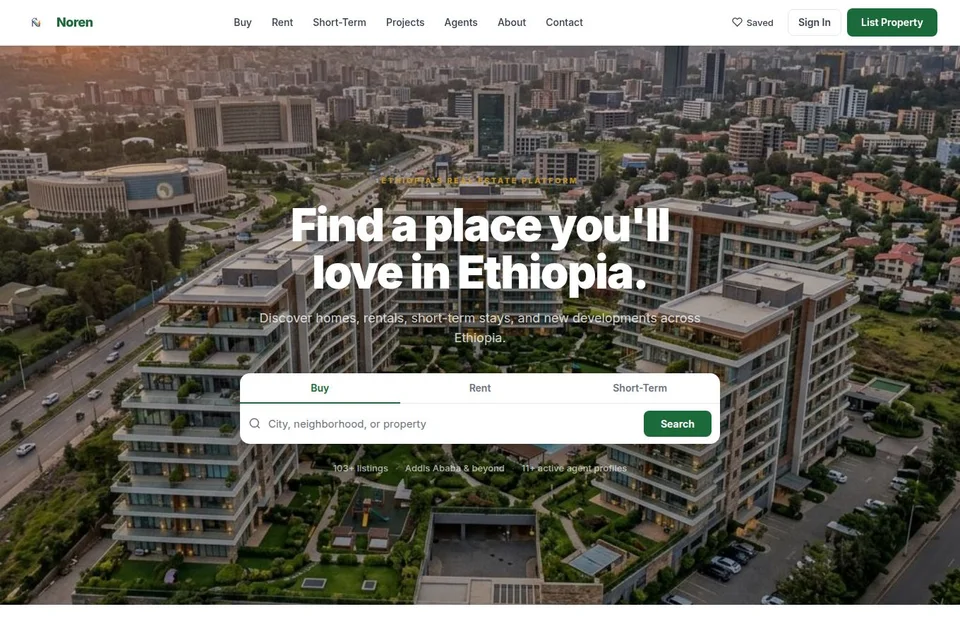
Find property
Begin with the purpose of the search, then narrow the results before opening a listing.
- Choose a market. On the website select Buy, Rent, or Short-Term from the home search or navigation. In the app open Explore, choose Buy or Rent, and use Filters for short-term rentals.
- Search and refine. Enter a city, sub-city, or keyword; the app also supports nearby search. Use available filters such as property type, bedrooms, and price; change sorting if needed.
- Compare places. On the website, inspect the result cards beside the map and select a card or map marker. In the app, browse results or switch to Map, select a marker, then open its property card.
- Explore developments. On the website open Projects, then a project to review its development information and available units. Project information depends on what the developer provided.
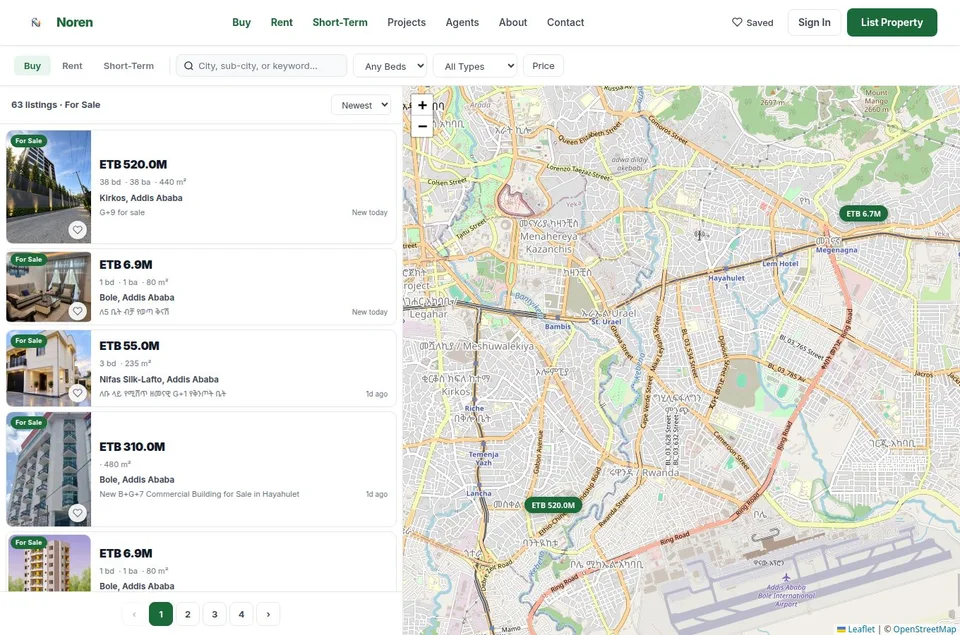
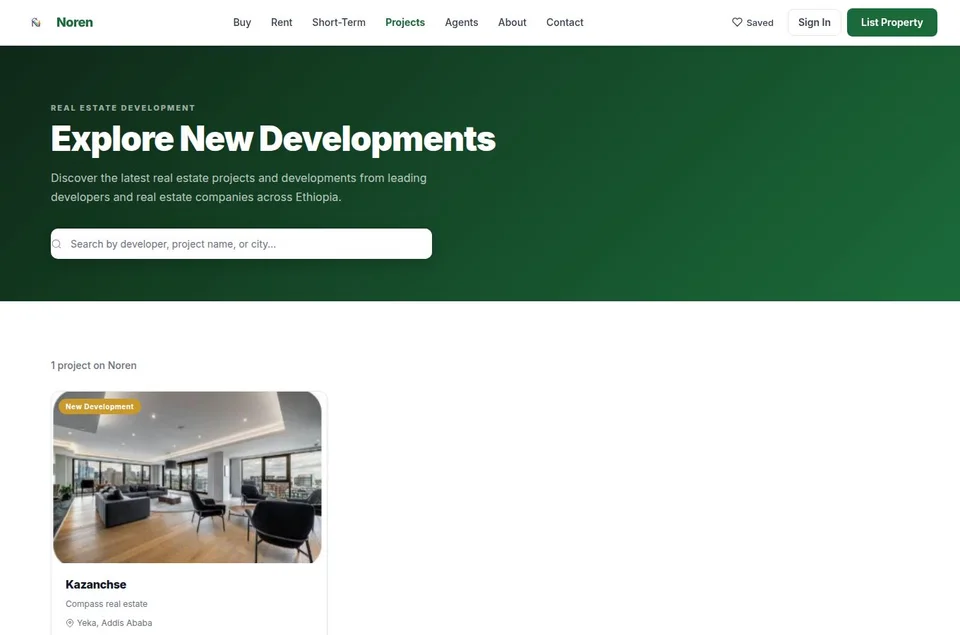
Read a listing
A listing is where discovery turns into a direct conversation. Check the details rather than relying on a thumbnail.
- Inspect the facts. Open the photos (full screen in the app) and check price and its period, location or map, property attributes, description, amenities, and the named contact. Where shown, review the price history. Availability and details can change; confirm with the contact.
- Follow supporting links. In the mobile app, social post or video-tour URLs appear when supplied by the lister and open outside Noren. Do not treat an external post as verified property data.
- Keep or share. Save the property to revisit it. In the app use Share to send its link; on the website you can copy the page URL. Sharing sends a link, not a reservation.
- Make contact. Choose Call or WhatsApp when provided. These open the phone dialer or WhatsApp outside Noren; there is no in-app chat, booking, or payment flow.
- Flag a concern. Use the app's report action to submit a listing concern. On the website, send the listing URL and issue through Contact; its visible report label does not currently submit a report.
Save a shortlist
Saved properties make comparison easier, but the website and app store favorites differently.
On the website
Select the heart on a property, then open Saved from the header. These saves are stored in that browser's local storage. They are not a synced account list; switching browser, device, or clearing site data may remove them.
In the app
Tap the heart and open Favorites in the bottom tabs. Favorites are stored on the device and scoped to the signed-in account where applicable; do not promise cross-device synchronization. If a property is removed, it may no longer open.
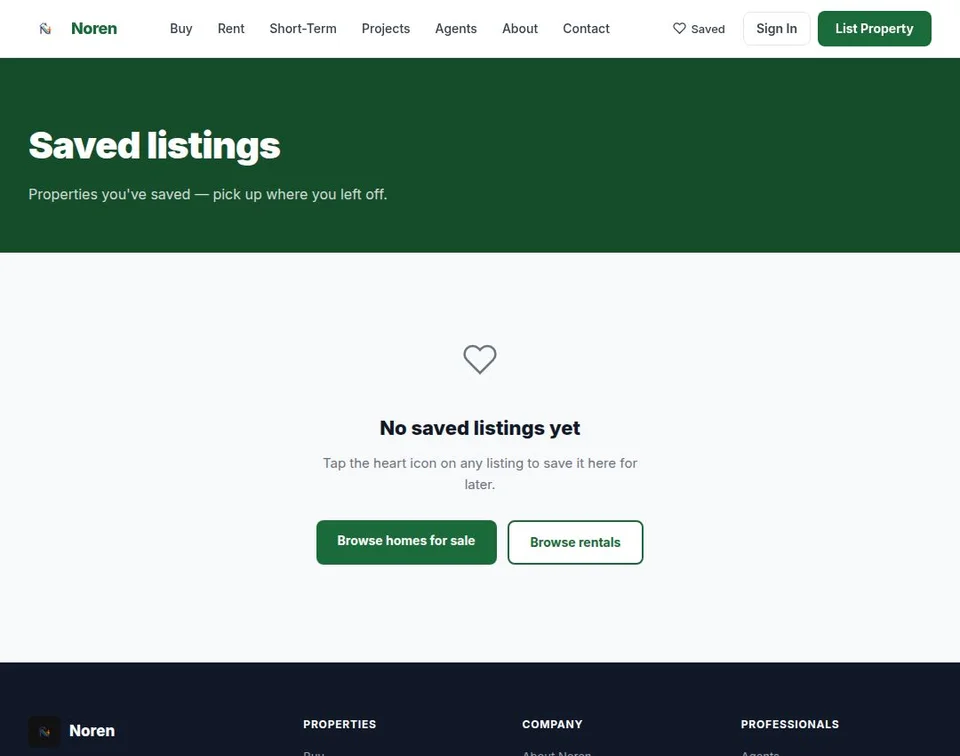
Accounts & access
Browsing is open; posting, managing listings, and some professional or staff actions require an account.
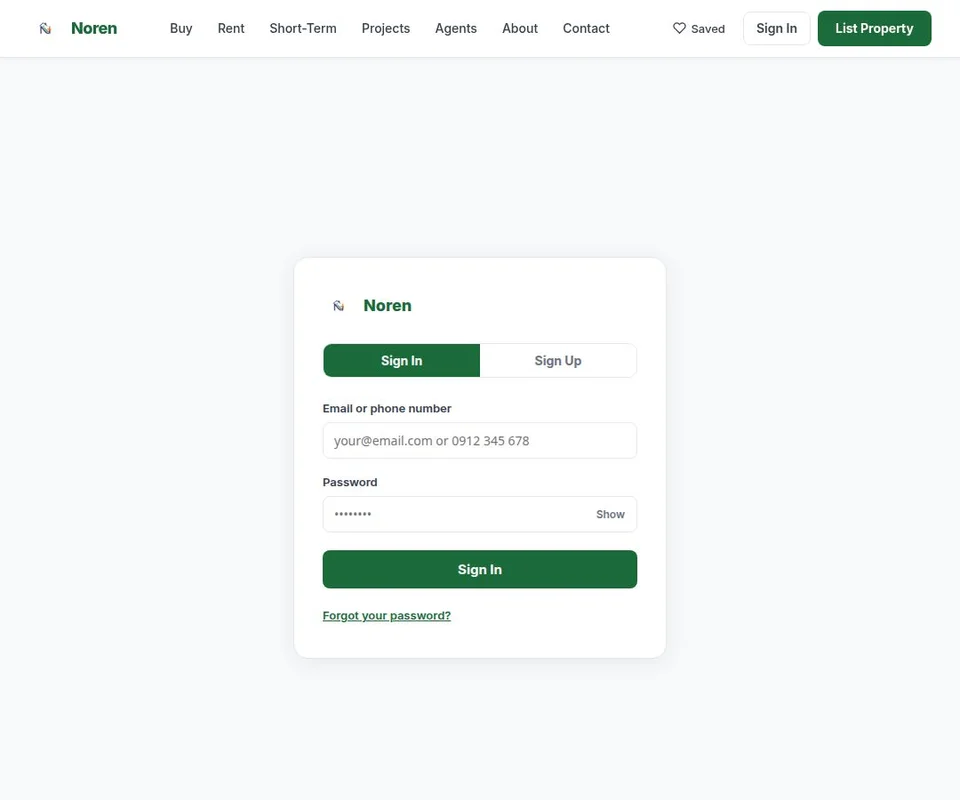
- Create an account. On the website open Sign In, then Sign Up. Choose email or Ethiopian phone number, enter the required details and password; email signups may need confirmation. In the app, open Account to register or sign in.
- Return to your account. Sign in with the same email or phone and password. On the website, My Account shows a linked agent's profile and owned listings; an account without an agent profile can still browse and post.
- Reset access. Use the website's password reset option: email receives a reset link; phone recovery uses the recovery PIN set for that account. In the app, use its available recovery option or contact support if blocked.
- Manage the account. In the app, Account also holds profile and settings actions such as editing details, changing a password, signing out, and requesting account deletion. Confirm the account before making a permanent change.
Post & manage a property
A signed-in owner, agent, or developer can supply property details and a direct contact number.
Website · five steps
- Property: choose seller role, sale or rent, category, title, and price. Real estate company projects have additional project and unit fields.
- Location: select city and add available sub-city or address details.
- Details: describe the property accurately and fill relevant attributes, amenities, or short-term settings.
- Photos: upload clear images and check their order.
- Contact: provide name, valid phone/WhatsApp and email; review, then submit. Start via List Property.
Mobile · Post tab
Sign in, open Post, then enter the property type, price and details, pin or select its location, add photos, and check contact information before submitting. Development listings can include units and payment options. The optional AI description helper can draft text; proofread and correct it before posting. In Account, open your listings to edit, mark a sale/rental as completed, or delete a listing where those actions are available.
On the website, My Account displays your linked listings and status; its current listing cards are not a full edit/delete console. Use the app's account listing actions when available or contact the team for assistance.
Find or become an agent
The directory helps people identify a professional contact; verification is not the same as posting a property.
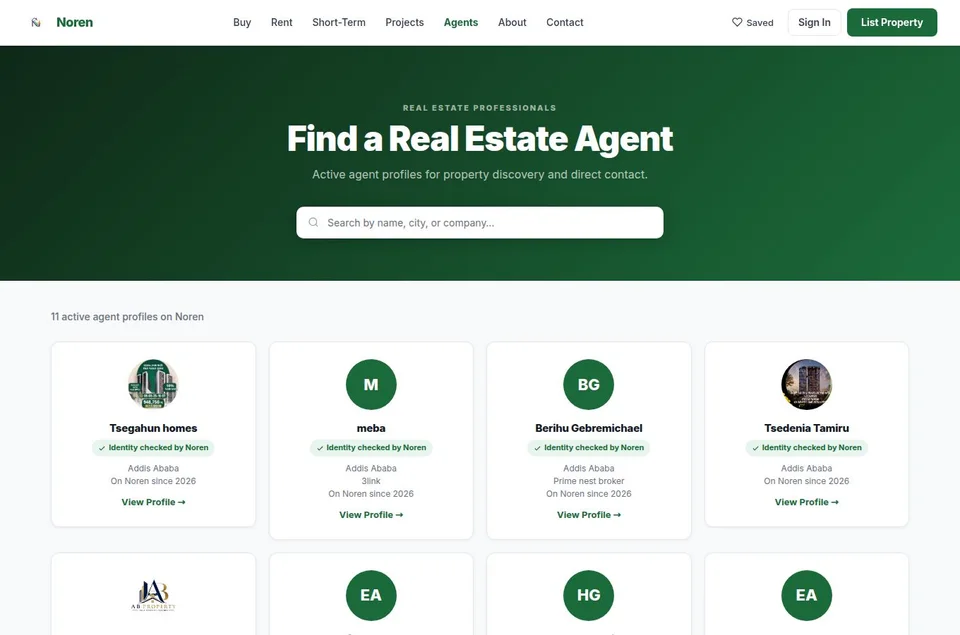
- Browse. Open Agents on the website or the Agents tab in the app. Search by name, city, or area; the app also offers specialty and experience filters. View a profile and linked listings, then use the available contact options.
- Apply in the app. In Account, choose Become a Verified Agent. Add a profile photo, contact details, service areas, specialties, and the requested background information before submitting. The team reviews verification; a pending application is not a verified badge.
- Maintain the profile. Update profile/contact details and manage your own listings from Account; check Account notifications for review updates. On the website, a signed-in agent can edit their profile and view linked property cards.
Restricted reporting
Government reporting and moderation are role-gated. Do not tell a new hire they automatically have access.
Website · government dashboard
Authorized users can open Reporting. Depending on their grant, they see Live Data, Demo Data, or both. Work through Overview, Sales, Rental, Market Map, Market Trends, Brokers, Price Transparency, and Market Data. Demo is demonstration data, not current market evidence. Only administrators see the Admin tab and access controls.
Mobile · Admin Panel
Only authorized admins see it under Account. It includes listing and agent moderation, reports, and account recovery. Review the record and permissions before taking action; never use these controls as a substitute for a normal buyer or seller flow.
Help, reports & policy
Route questions to a real contact and preserve enough context to investigate.
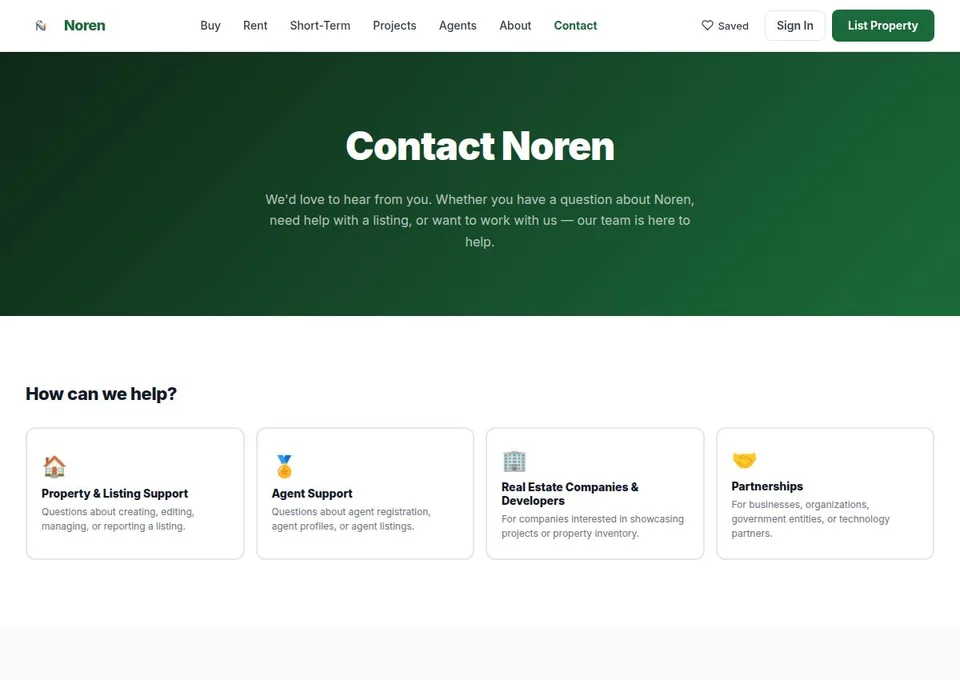
- Get help. Use Contact Noren for account, property, or product questions. Include the listing URL or account context, but never send passwords or recovery PINs.
- Report a listing. Use the mobile listing report option for inaccurate or concerning content. On the website, contact support with the listing link and a short description; the report label does not submit a report.
- Check the rules. Read the Terms of Service and Listing Policy before posting or advising a seller. Noren connects people; it does not process property payments or bookings.
Quick reference
A few common questions to resolve before escalating.